Premiere’s “idiot-proof” design makes it easier for people who aren’t skilled at editing to get started. Simply describe what you want, then choose images or audio that fit the scene, and the tool reduces the number of steps needed on the timeline.
To be direct, its strength is that it suits creators who need to produce videos quickly, social media projects, or teams without a dedicated editor. But this simplicity comes with limitations: the results may not fully match the brand’s tone, and you still need to review the visuals, audio, and editing rhythm yourself.
Beginners benefit the most, while professional editors will likely see AI as an assistant that speeds up their work rather than something they should allow to make every decision for them.
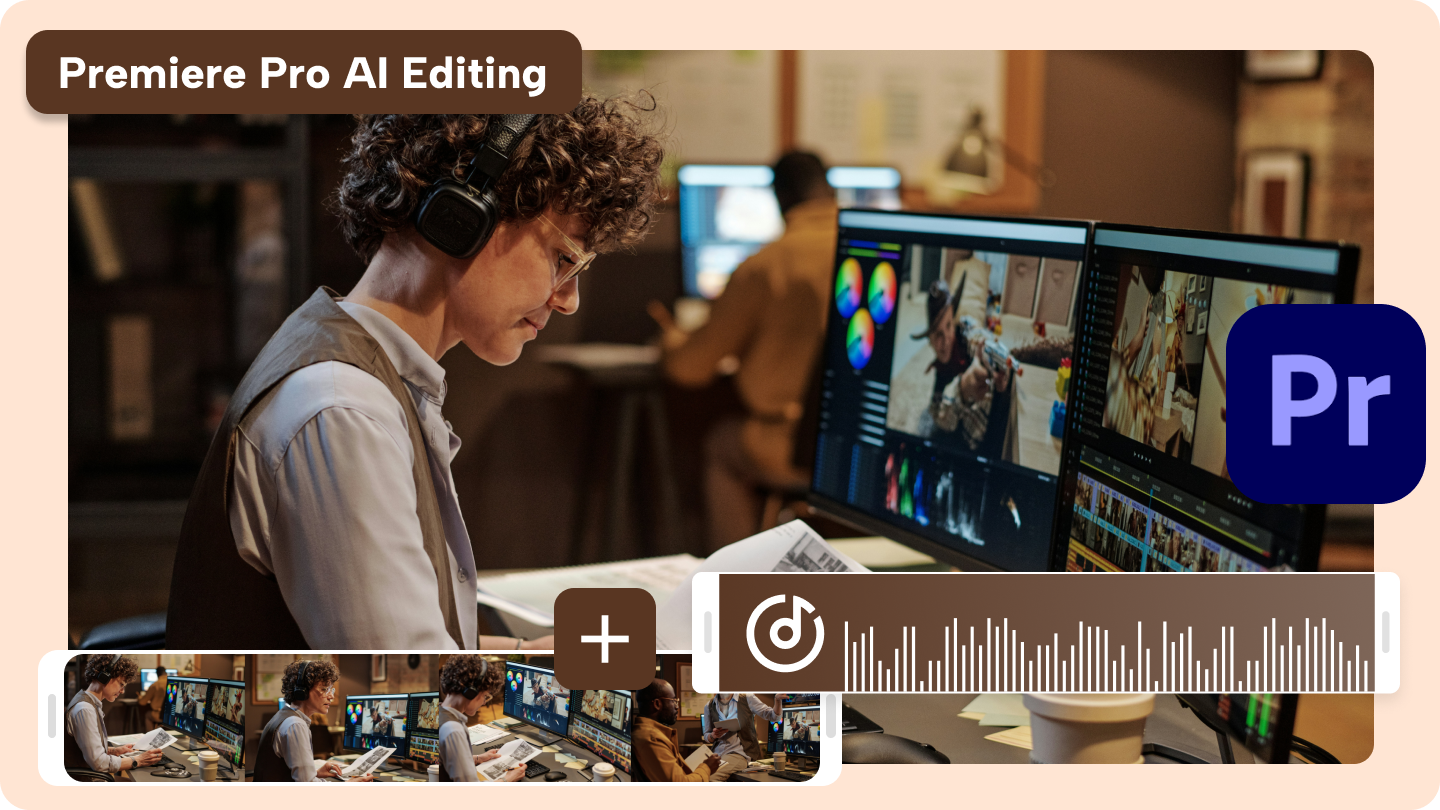
When AI in Premiere Starts Working for People Who Aren’t Skilled at Editing
Premiere is making AI easier to use without requiring complex commands. Simply describe what you want in natural language, and you can start creating or adjusting clips more easily. This is ideal for people who know what they want the final result to look like but are not yet comfortable with the editing process.
This reflects a shift from detailed commands to an easier, more intuitive way of working. However, the results should still be reviewed and adjusted to suit the actual project before publication.
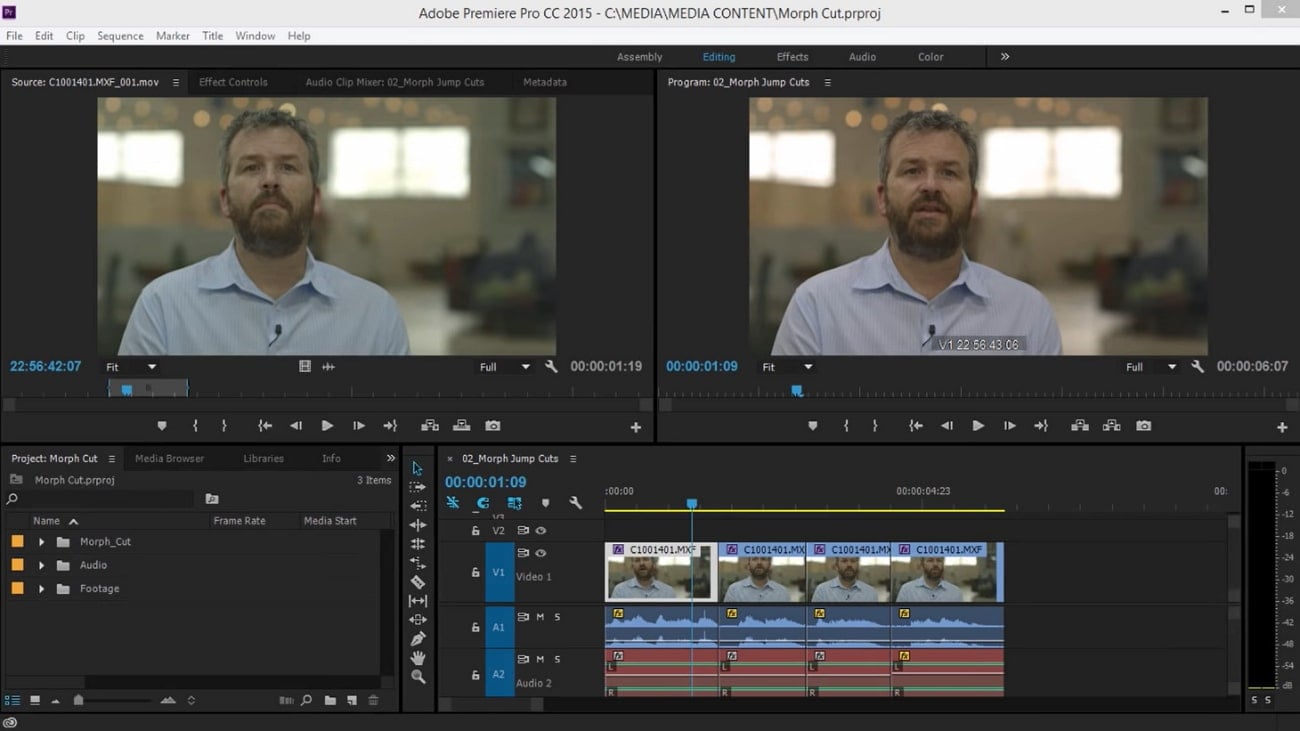
From an Awkwardly Edited Clip to a Publishable Result
Imagine a project with footage filling the timeline, but most of the time is spent searching for shots, removing silent sections, adjusting audio, and filling in missing visuals. Editing becomes slow even though the core idea is already clear.
Premiere’s AI helps handle these tedious tasks through simple commands, from finding shots that match the content to creating or filling in elements so the visuals flow more smoothly. The workload is genuinely reduced during the initial stages, but you still need to check the timing, audio, and accuracy before publishing because a result that looks good at first may not fit the overall tone of the project.
Where Premiere Is Positioning AI Within Adobe’s System
Premiere still places AI alongside the editing desk rather than making it take over the entire job. This differs from Photoshop, which focuses on editing and filling in images, and After Effects, which focuses on motion and visual effects.
Premiere’s direction is therefore to accelerate existing tasks, such as finding footage, filling visual gaps, and helping transitions flow more smoothly, while editors still need to choose the tone and narrative and review the results to ensure they fit the actual project.
Looking at the whole Creative Cloud ecosystem, Premiere serves as the footage hub where AI helps reduce repetitive work, while other tools remain more responsible for specialized creation and editing.
What Changes When Manual Editing Becomes AI-Assisted
Premiere reduces repetitive steps by letting AI help find, fill, and edit footage through natural-language commands. The workflow moves faster, but editors still need to verify the results and make the final decisions themselves.
| Factor | Traditional workflow | Premiere's new approach |
|---|---|---|
| Finding footage | Review and organize everything manually | Type what you want AI to find |
| Filling in visuals or audio | Find files and place them manually | Let AI create or fill in missing sections |
| Editing objects | Select and edit each point individually | Identify the object and let AI help edit it |
| Writing commands | Use multiple editing tools and steps | Describe the desired result in plain language |
| Controlling the result | Control the details yourself | Review and adjust the AI-generated result |
Trying It in Practice: Where AI Helps in Daily Editing
Search for a shot using a description such as “a person walking into a room,” then let AI select clips from the footage library. This can greatly reduce the time spent searching for files, but you should review the beginning and end of each clip yourself because AI may choose a similar shot that still does not feel right.
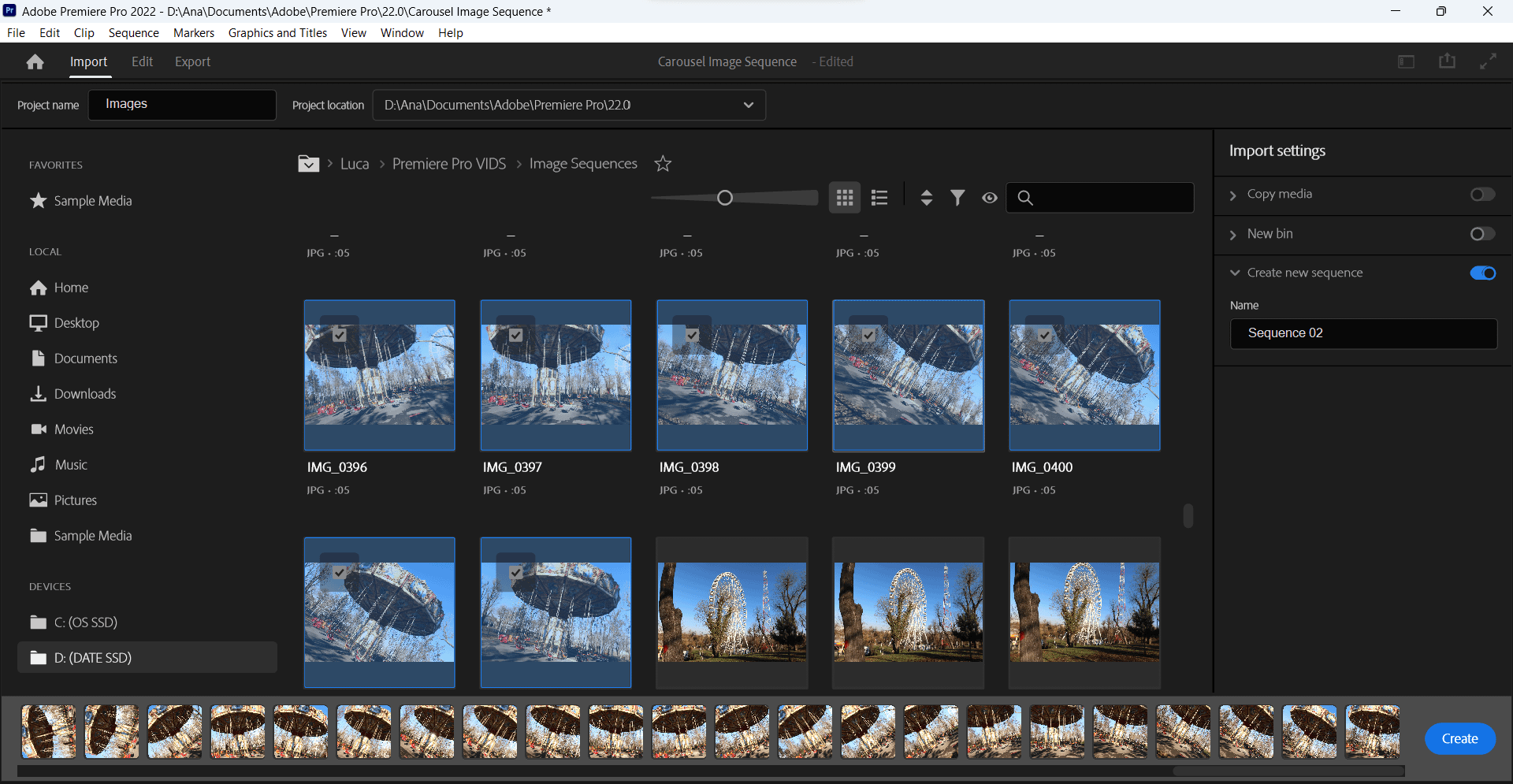
If there are distracting objects in the frame, identify them and let AI remove them or fill in missing areas. The results are fairly seamless in simple scenes, but scenes with people walking through them or lots of detail still require you to refine the edges manually.
If the original audio has problems, let AI reduce noise or generate background audio that matches the mood. The results are suitable for drafts and short-form work, but the timing between the audio and visuals still needs to be adjusted manually.
When creating videos in multiple aspect ratios, let AI frame the shot and track the main subject. Accuracy is acceptable when the subject does not move quickly, but you should always check the text and cuts before exporting.
Where Premiere Still Stands Out Compared with Other Tools
Premiere stands out for its professional workflow and integration with other Adobe products. Its AI tools reduce the number of steps while still allowing editors to control details at a deep level.
| Factor | Premiere | DaVinci Resolve | CapCut |
|---|---|---|---|
| Ease of AI tools | Easier to use and suited to real projects | Requires more learning | The easiest for fast projects |
| Quality of results | Consistent for professional work | Strong in color and audio | Good for general content |
| Depth of control | Deep and flexible | Very deep | More limited |
| Workflow speed | Fast when using the existing workflow | Suited to detailed work | Fast for short clips |
| Cost | Requires a subscription | Has a free version | Has free and paid versions |
| Best for | Professional teams and serious projects | Color, audio, and post-production specialists | Beginners and social creators |
The Convenience You Gain and the Trade-Offs You Accept
AI in Premiere reduces repetitive tasks such as cutting silent sections and organizing clips, allowing beginners to create professional-looking videos more quickly. However, the results may still be inconsistent, and deep-detail adjustments remain limited.
Some features may depend more heavily on the cloud or system resources. In addition, videos created from preset formats may look too similar if you do not add your own ideas and style.
Pros
- +Reduces time spent on repetitive editing tasks
- +Beginners can get started quickly
- +Helps videos look more professional
Cons
- −Inconsistent results
- −Limited control over details
- −May depend on cloud services or system resources
- −Risk of producing videos with repetitive formats
Premiere’s Costs Go Beyond the Subscription Fee
In addition to the Creative Cloud subscription, there are costs for file storage and cloud-based AI processing, as well as the time required to review and fix results that do not meet expectations. The more times a task needs to be corrected, the higher the labor cost becomes.
You may need to upgrade your computer so it can handle video editing, or pay more to use cloud resources. If you check the files on an iPhone 17 Pro Max, its 120Hz OLED display can help with an initial review, but it still cannot replace the main workflow.
Finally, there is the cost of learning new commands and correcting AI decisions when they are wrong. Work that appears to be faster should therefore include the time spent reviewing and revising the results.
Who Benefits from the Easier-to-Use Version of Premiere
Premiere’s simplified commands suit people who want to start editing more quickly, especially those working on repetitive projects that need to be exported quickly. However, you still need to allow time to review the AI results every time.
Made for
- Solo creators who handle many tasks themselves
- Marketing teams that regularly produce short videos
- Beginners who want to reduce editing time
Think twice
- Professional editors who need frame-by-frame control
- People who work primarily offline and do not want to rely on the cloud
Skip this one
- People who want more freely generated visuals than timeline editing — try a dedicated image-generation tool
Good AI Does More Than Take Over Tasks—It Helps You Decide Faster
The convenience of AI in Premiere should be measured by the time it genuinely saves. After letting AI create visuals or audio, editors should still be able to review and revise quickly, produce smooth-looking work, and maintain control over the timing and important details.
Before moving your entire workflow to AI, test it first on repetitive, low-risk tasks, such as short social videos or adding background audio. Then see whether it genuinely reduces the number of steps. If you still have to revise nearly every detail, the apparent convenience may only be the interface—not a real reduction in time.