TL;DR: Ollama on Linux Server 24/7
Ollama lets you run AI models locally on a Linux server with a single install command. The catch: it’s RAM-hungry, especially with larger models.
Running 24/7 is stable, but electricity costs add up because the GPU is always on. Worth it if you use AI heavily and care about data privacy — nothing leaves your machine.
Requirements: a decent GPU, plenty of RAM, and willingness to pay higher electric bills. If you only use AI occasionally, cloud services are cheaper.
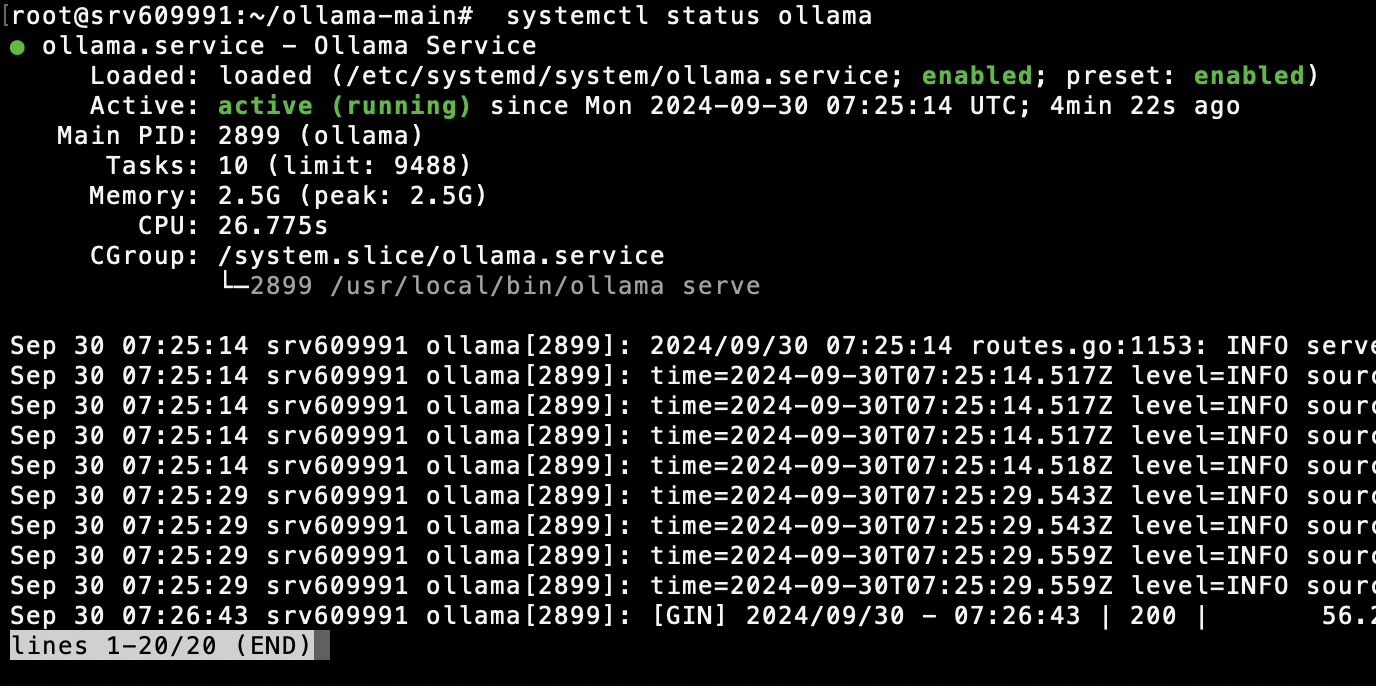
Ollama Dashboard Screenshot
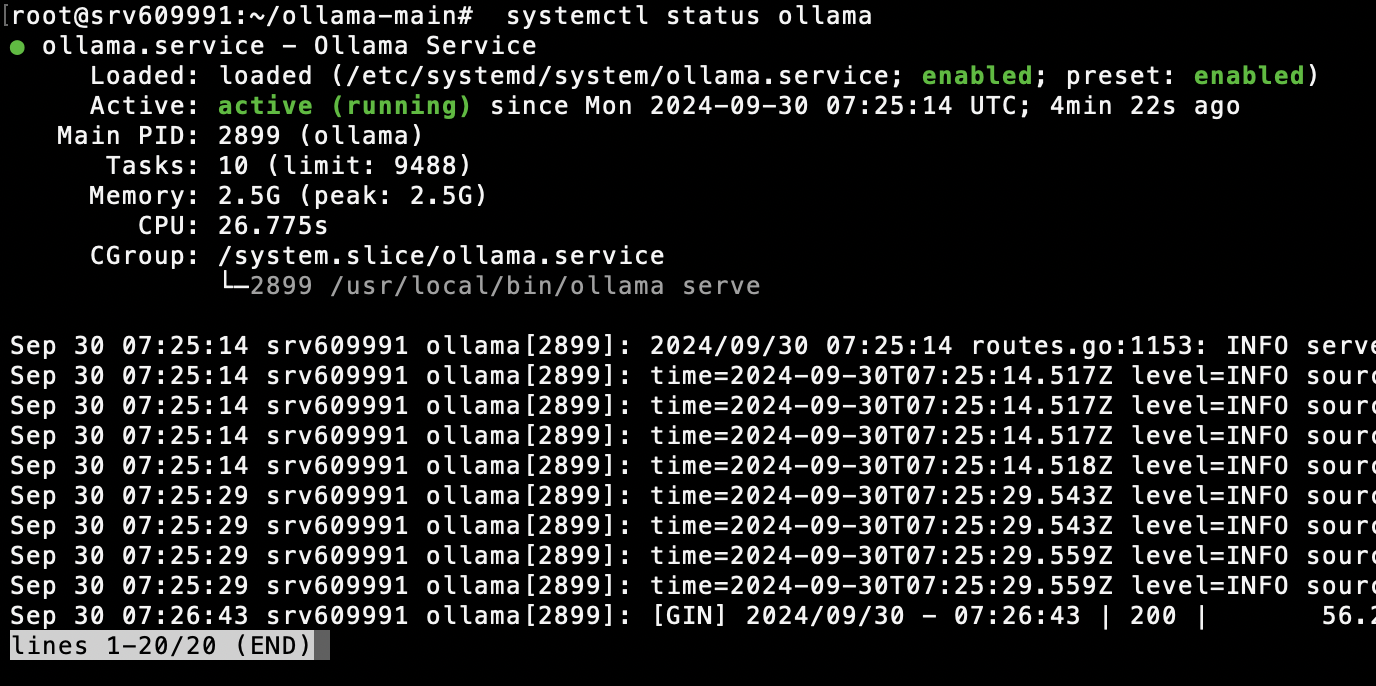
The terminal gives you clear real-time status. When running a 7B model, you’ll see RAM jump to 8–12 GB immediately, with GPU utilization spiking to near 100%.
CPU usage sits at 20–30% only during model loading, then drops. Monitoring with htop or nvidia-smi gives you a clear health picture of the machine.
I find having this kind of dashboard invaluable for troubleshooting — you see instantly where the bottleneck is. RAM full? Reduce concurrent requests. GPU overheating? Adjust the fan curve.
When You Actually Need a Private AI
Using ChatGPT for work, I kept worrying about company data leaking. Code sent for review, important documents — all potentially stored on OpenAI’s servers. That’s a real problem.
Then there’s the rate limit frustration. Two or three hours of heavy work and you’re throttled, even on Plus or Pro.
Having a private AI eliminates both issues. Data stays on your hardware, usage is unlimited as long as the hardware holds up, and you can customize it for your exact workflow.
Where Ollama Fits in the AI Tools Landscape
Think of the spectrum: one end is cloud services like ChatGPT or Claude — easy but with constraints. The other end is training your own model — full control but massive complexity.
Ollama sits in the middle as a local inference engine. You take pre-trained models and run them on your own hardware, no ML code required, no cloud dependency.
That position is ideal for developers who want a private AI running 24/7 on a Linux server without worrying about quota limits or API costs that keep climbing.
Comparing Against Previous Ollama Versions
| Factor | Ollama 0.1.x | Ollama 0.3.x |
|---|---|---|
| Supported Models | 20+ models | 70+ models |
| Memory Usage | 4-8GB RAM | 2-6GB RAM |
| API Features | Basic REST | REST + OpenAI Compatible |
| Model Loading | 30-60 seconds | 10-20 seconds |
The jump from 0.1.x to 0.3.x is significant, especially the memory optimization — RAM usage dropped by nearly half. The new API’s OpenAI compatibility makes it much easier to integrate with existing apps.
Upgrading is worth it for anyone running 24/7: smaller memory footprint means better server stability and faster model loading. If you’re still on the old version, upgrade.
Real Use Cases Where Ollama Shines
Code review is one of Ollama’s strongest use cases. Push code to it, ask “any bugs or security issues?”, get instant feedback. Content writing and document summarization are just as strong — feed it a long PDF and get bullet-point summaries.
Data analysis is what I use most: hand it CSV files, ask for patterns, get visualization suggestions. The key advantage is that it runs locally — no data leaves the machine, which is much safer than cloud services.
Unlike ChatGPT, you can tune the model to your specific use case. Set it up once and it runs 24/7.
Comparing Against Alternatives
| Factor | Ollama | LocalAI | GPT4All |
|---|---|---|---|
| Ease of Setup | curl install, done | Docker compose, more complex | Download exe, simplest |
| Model Support | Llama, Mistral, CodeLlama | OpenAI compatible APIs | Limited models |
| Performance | Fast inference, low RAM | Heavy resource usage | Moderate performance |
| Community | Active GitHub, frequent updates | Smaller community | Growing but limited |
Comparing directly: Ollama wins on ease of use and performance on Linux server. LocalAI has better API compatibility but eats more resources. GPT4All is better suited for desktop than server use.
Ollama is the sweet spot for anyone who wants to self-host AI without friction. Easy setup, stable runtime, strong community support.
Pros and Cons
Pros
- +Dead simple setup — one curl script and you're done
- +Low RAM footprint — 7B model runs on just 4GB
- +Large model library, easy to download
- +API ready immediately, no extra config
- +Stable 24/7 operation, no memory leaks
Cons
- −GPU support is NVIDIA only
- −Model switching is slow — full reload required
- −No fine-tuning — pre-trained models only
- −No web UI — CLI or API only
- −Basic log management, no advanced monitoring
The standout feature is how easy it is to deploy on a production server. One command and the model is ready — no dependency management, no environment juggling.
The NVIDIA-only GPU limitation is a real problem if you’re running AMD or Intel GPU. But if you have NVIDIA, you get full performance.
Hidden Costs
Electricity is the main cost most people overlook. A GPU pulling 200–300W continuously, plus the CPU, adds up to over ฿1,000/month (~$28 USD) easily. Running a 70B model burns even harder.
RAM is another consideration. A 13B model needs at least 16GB, but 32GB is the safe number. RAM upgrades aren’t cheap.
Initial setup takes about 2–3 hours including model downloads and configuration. After that, maintenance is light — under 30 minutes a month.
The total cost of ownership makes sense if you’re a heavy user, because you’re not paying per-call API fees like you would with a cloud service.
Who Should Use It (and Who Shouldn’t)
Use it: Developers wanting a personal AI assistant, or small teams that rely heavily on coding help. Great fit if you already have a Linux server or prefer self-hosted over cloud-dependent setups.
Skip it: Anyone who doesn’t want to manage a server, or needs ChatGPT-level simplicity. If you only use AI a few times a month, the 24/7 electricity cost isn’t worth it.
For companies: Good fit if data confidentiality matters and you don’t want to send anything to OpenAI or Google. For large teams with high concurrent users, plan for significantly more hardware.
If it’s a hobby project or small startup, it’s absolutely worth trying — you’ll get real self-hosting experience that’s hard to replicate any other way.
Verdict
Straight up: Ollama on Linux server is a solid choice if you want direct control over your AI model, but cost matters.
Use it if: You’re a company with data security requirements, or a developer who wants to learn self-hosting properly. For casual use, ChatGPT or Claude may be more cost-effective.
Main limitations: High hardware requirements, particularly RAM and GPU. Electricity isn’t cheap. High concurrent user loads will slow things down.
If budget is tight, start with a small 7B model, validate the results, then upgrade hardware and scale up from there.